HOW TO USE THE STEP BY STEP VIDEOS:
If you are using the latest version of the Windows Media Player, or any version after 6.4, you MUST do the following PRIOR to opening the video files.
1) Locate your copy of the Windows Media Player
If you are not sure where it is, go into:
START > PROGRAMS then look for: WINDOWS MEDIA PLAYER.
The icon will look like this:

2) Open Windows Media Player
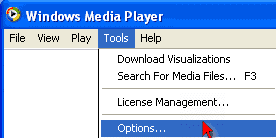
Once you have opened the program, you need to click on TOOLS>OPTIONS from the menu at the top of the program, as shown below:
3) When the "Options" area opens up find the tabs across the top:

You will need to click on two of them, starting with "Performance", as shown above.
Click the "Performance" tab, to go into that section of the program.
Once inside, look near the bottom until you see a section that says "Video Acceleration":
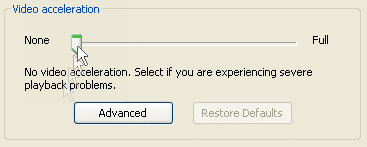
Grab the slider and drag it until it is all the way to the left, by the word "None" that you see in our example above.
Then click the APPLY button near the bottom. Do not click the OK button yet though. There is one more quick step.
4) Click on the tab across the top that says: "File Types".
When that opens, simply click the "Select All" button as shown below:
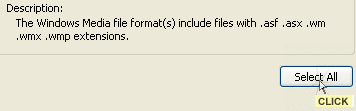
Then click APPLY, then click the OK button to close the Options area.
5) The last step is to be done AFTER you open one of the videos.
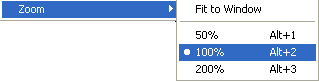
When you have opened one of the video files, the final step is to click on 'VIEW' from the menu at the top of the Player, and make *sure* that you have ZOOM set to 100%.
Here is an example:
If you do not follow the above instructions, the text inside the Camtasia Videos may appear blotchy and difficult to read.
This is a known problem with the new version of the Windows Media Player, and the above are the suggestions made to us by technical support, as the only way to resolve these issues.
If you are using an older version of the Media Player, the above steps *may* not be necessary. To find out, simply open a video. If the text appears blotchy or difficult to read then return to the top of the instructions and make those simple changes.